---
updatedAt: 2026-09-28T04:49:20.000Z
---
# Design
In the **Design** tab, you can change the look and feel of the video viewing experience.
Create templates of your designs to maintain company identity and brand awareness.
## View List of Templates
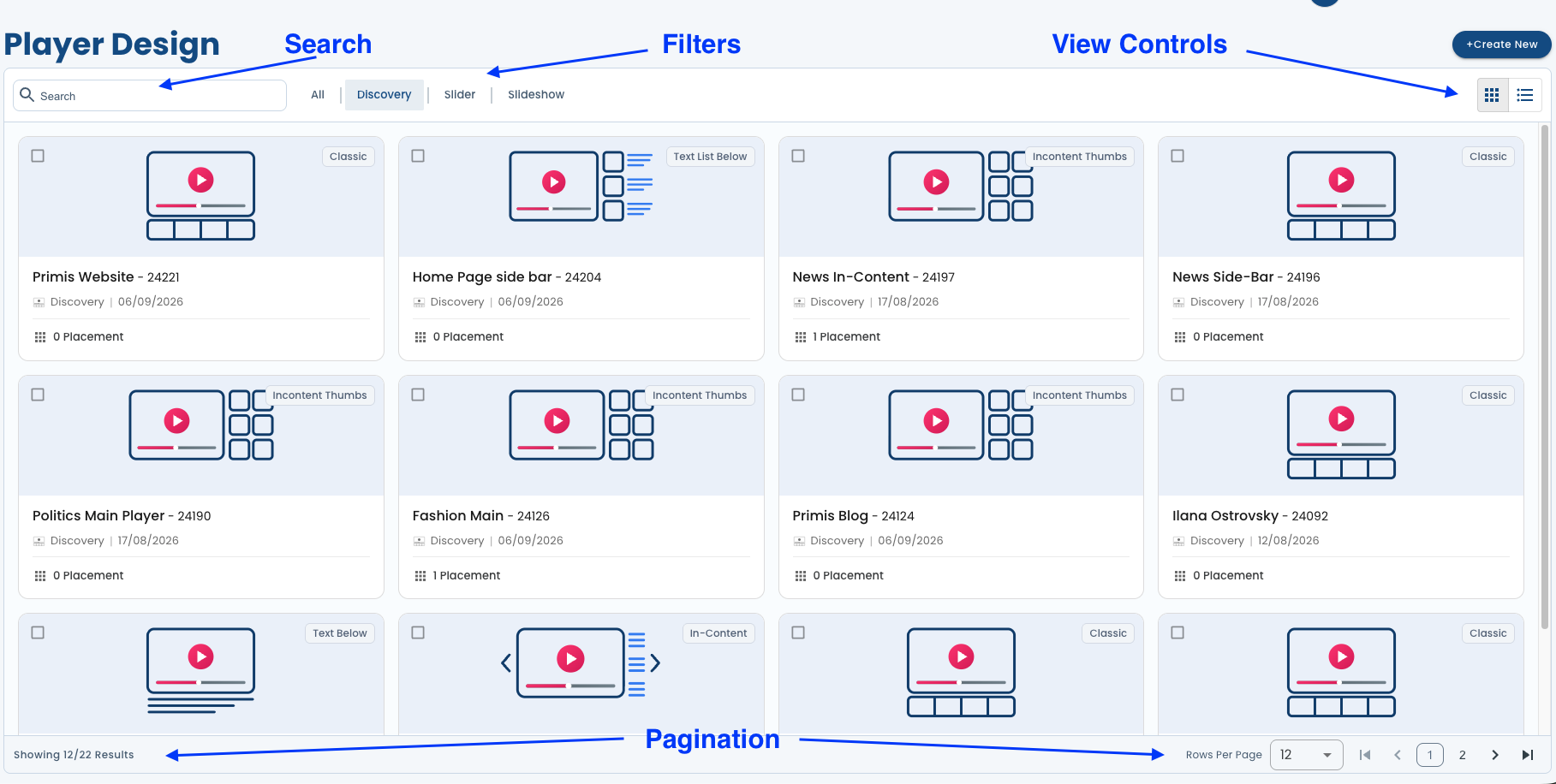
The main view allows you to -
* Choose your preferred view - Grid or List.
* Filtre the templates by type - Discovery/Slider/Slideshow
* Search templates by name
## Design a Template
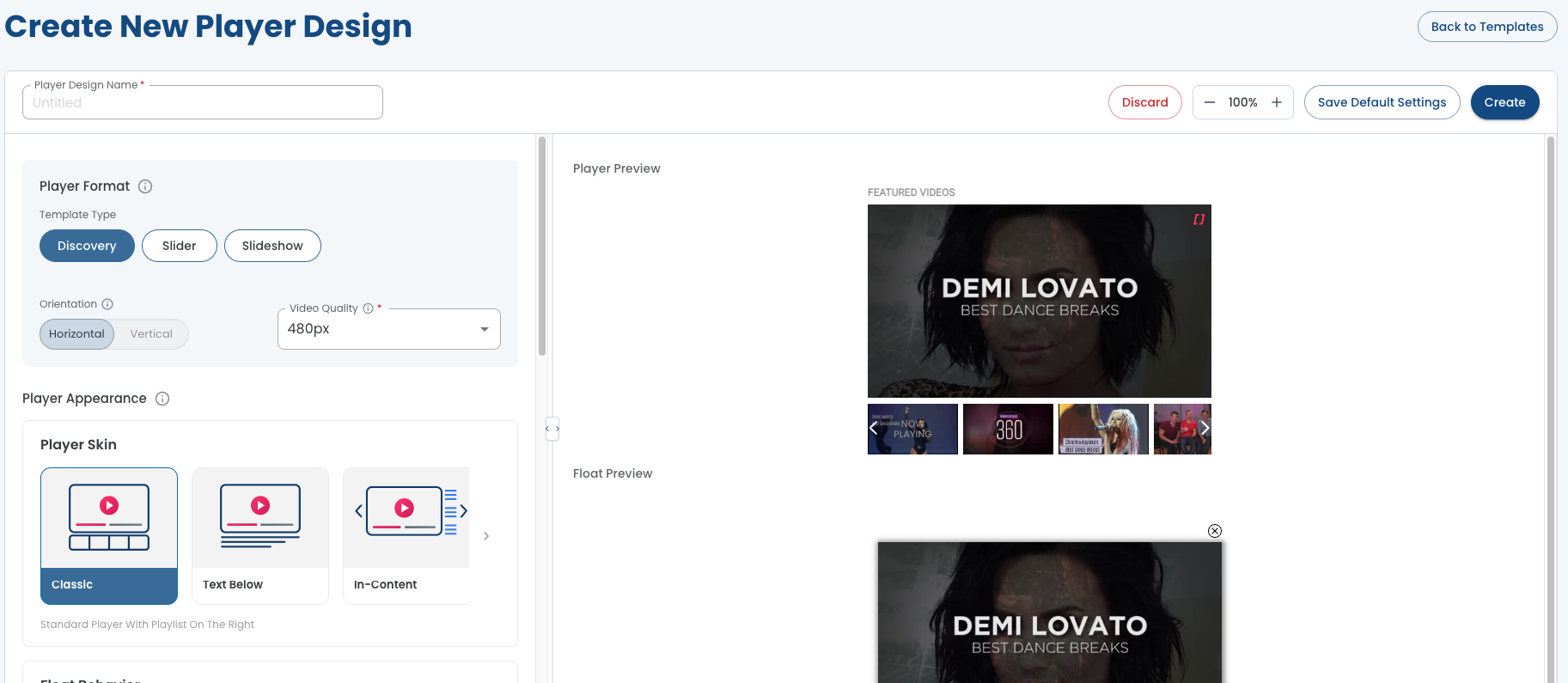
Design how your video is presented, and save the design as a template.
### Basic Setup
1. Enter a meaningful name for the template.
2. Choose the template type.
3. Choose the player appearence
1. Choose your player skin from multiple skins types in the skons carousel
2. Choose your float behavior
3. Choose your control styles
4. Choose the colors for the main skins parts
4. Choose the Player Size and set your own text and fonts
5. Choose your branded Logo and define the logo position
6. Set your preferred player elements and overlays
### Colors
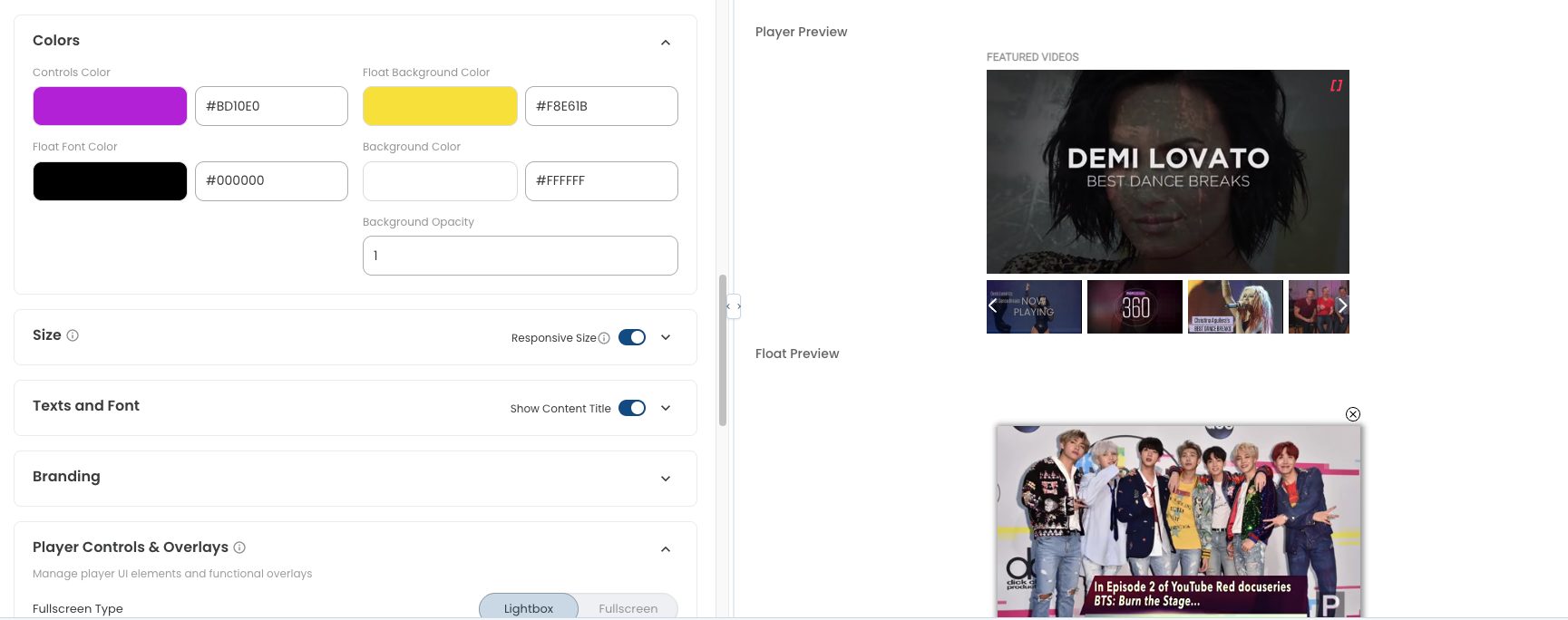
Change the **colors** of specific elements in the video. For example, change the color of the progress bar, the title color, or the description color.
### Text & Font
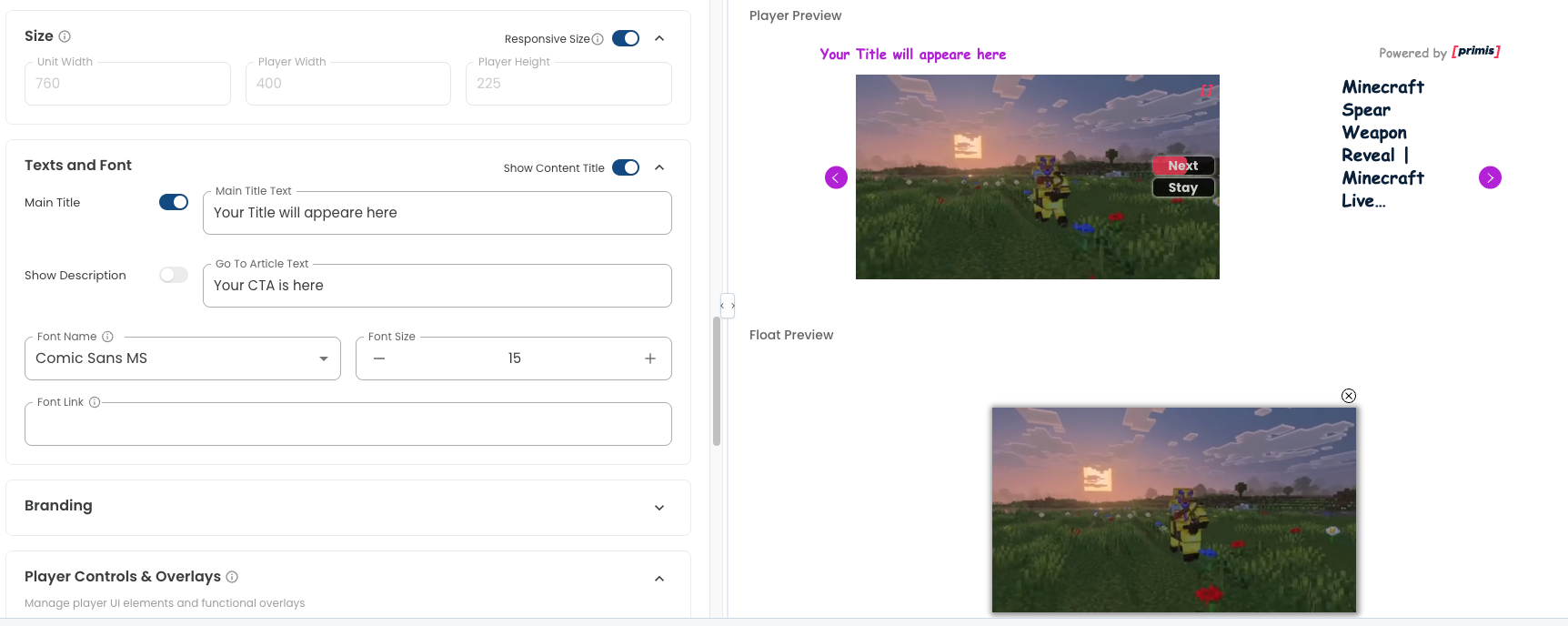
1. Show or hide the **Content Title**. View your changes at any time in the preview window.
2. In the **Main Title Text** field, type the main title. Choose to show or hide the main title text.
3. In the **Go to Article Text** field, enter the redirecting link for the article.
#### Choose the **text and fonts** to be used in the template
If you wish to use a specific font style, and the font is not in your system, do the following:
1. Browse to [Google Fonts](https://fonts.google.com/?query=roboto).
2. Copy the URL of the font family, for example,
3. Paste the URL into the **Font Link** field.
4. In the **Font Name** field, type the name of the font and the style, for example, **Roboto Bold 700**. *Please insert the value as "Roboto Bold 700"*
5. Specify the font size.
The preview window is updated and displays the selected font, style, and size.
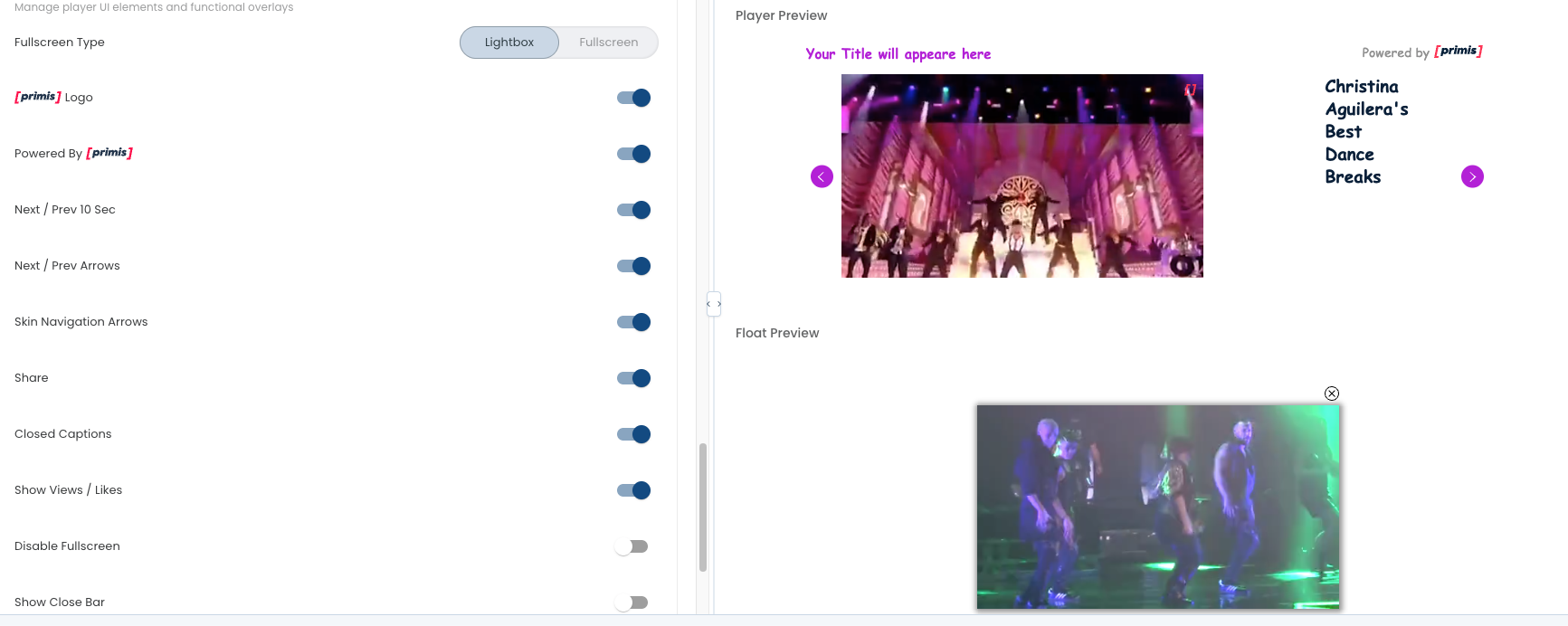
### Player Controls & Overlays
Enable the video to be played in fullscreen, choose the buttons for the player and how they appear, add engagement components. Primis recommend the default values and parameters.
## Duplicate Template
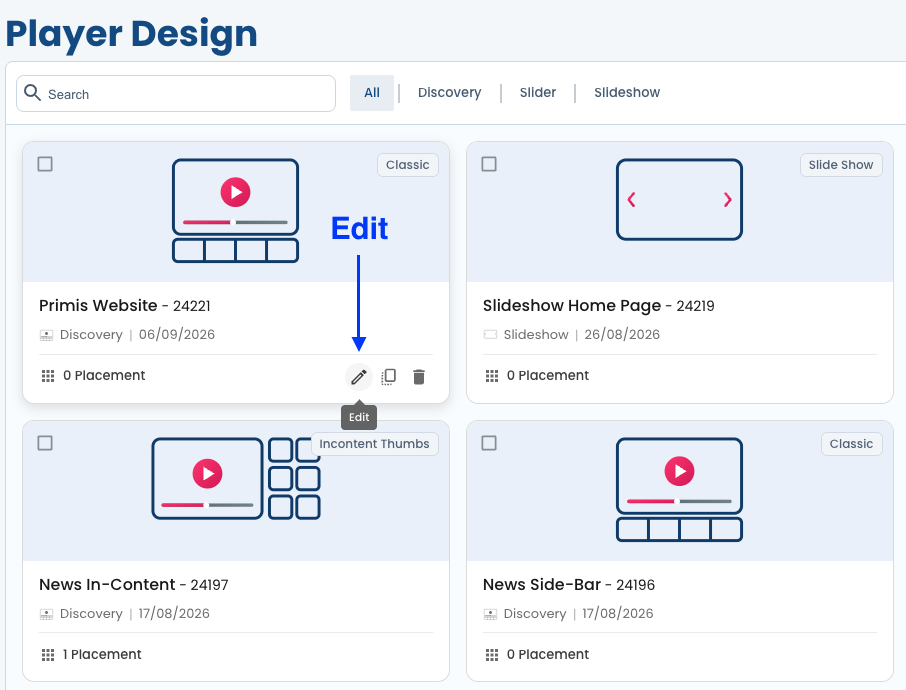
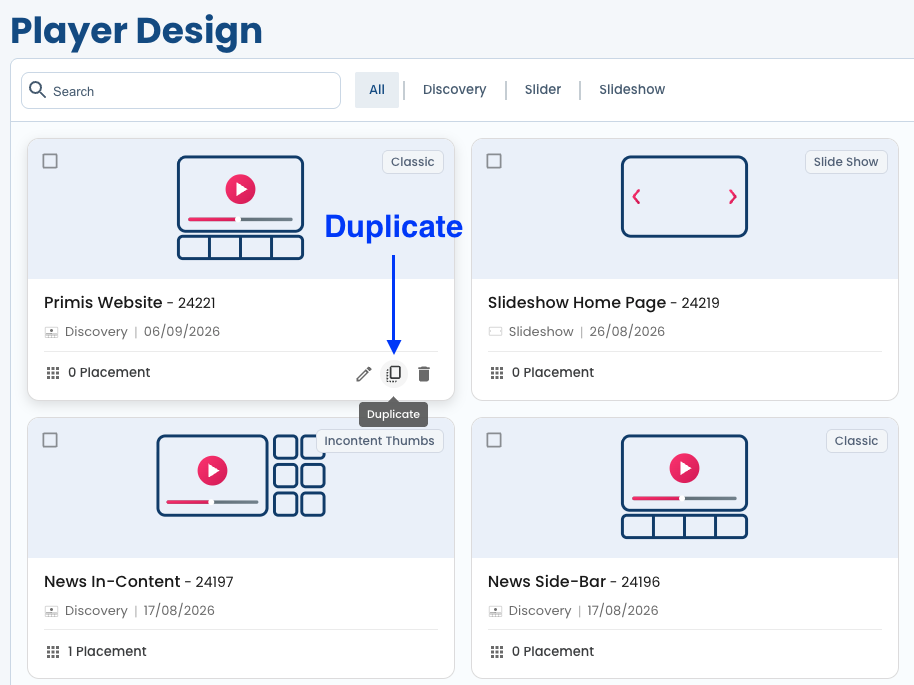
1. In the **main view hover on the desired template**, click **Duplicate Icon**. A duplicate of the template opens.
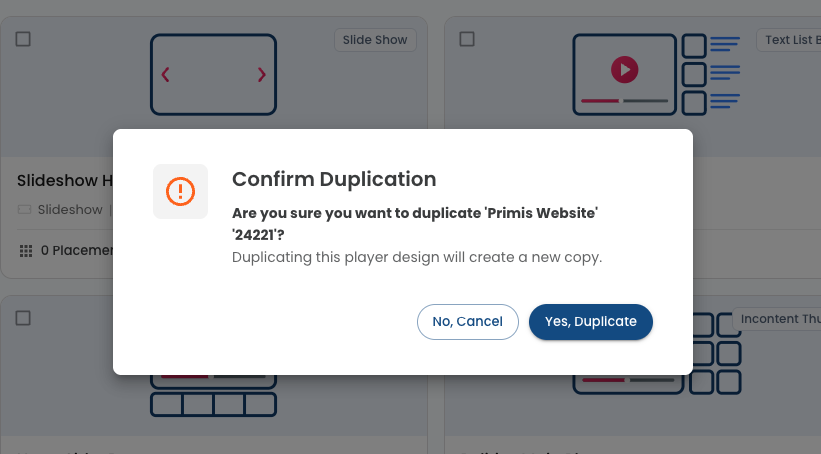
2. Confirm duplication by clciking "yes duplicate"
## Edit Template
in the **main view hover on the desired template**, click **Edit Icon**. Edit form of the template opens.
1.